¿Cómo leen los detalles y archivos del manuscrito?

Paige Watson
Updated on 10 de marzo de 2026When you are invited as a reviewer in PeerSubmit, you will receive access to the organization and conference where you are assigned to review submissions. After logging in, you can select the organization and conference to access your reviewer dashboard and assigned papers.
Each reviewer may have access to one or multiple conferences depending on the invitations sent by organizers.
Step 1: Log in to PeerSubmit
- Go to the PeerSubmit login page.
- Enter your registered email and password.
- Click Login to access your account.

Step 2: Select the Organization
- After logging in, you may see a list of organizations.
- Select the organization that invited you to review submissions.
- You will be redirected to the organization dashboard.

Step 3: Select the Conference
- From the available conferences, select the conference you are reviewing for.
- The conference dashboard will open.
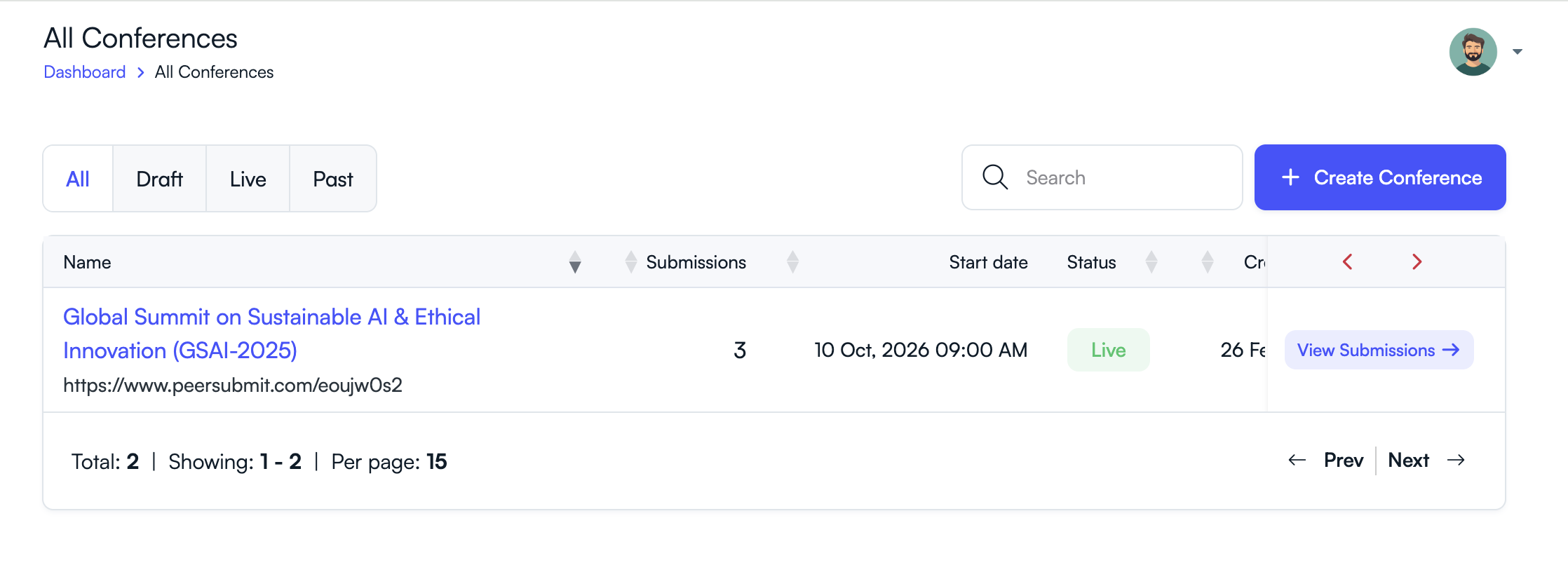
Step 4: Open Assigned Submissions
- Navigate to the Submissions section.
- You will see the list of papers assigned to you for review.
- Click a submission to view the manuscript details and start reviewing.

Step 5: Select the Submission
- Click on the submission you want to review.
- The Submission Details page will open.

Step 6: Review Manuscript Details
- Read the submission information such as title, abstract, and keywords.
- Review author information if the conference uses a single-blind review process.
- If the conference uses double-blind review, author identities will be hidden.
Step 7: Download and Read Manuscript Files
- Locate the Manuscript Files section.
- Download the submitted paper or supplementary files.
- Carefully read the manuscript before submitting your evaluation.
Step 8: Continue to Submit Your Review
- After reviewing the manuscript, navigate to the Review section.
- Provide evaluation scores and comments based on the review criteria.
- Submit your review before the review deadline.
By reviewing manuscript details and files carefully, reviewers can provide accurate and constructive feedback that helps maintain the quality and integrity of the conference review process.
Related Articles
Comience a Gestionar su Conferencia: Desde el Envío hasta la Decisión
Únase a cientos de organizadores que confían en PeerSubmit para gestionar sus eventos académicos con eficiencia impulsada por IA y flujos de trabajo fluidos.
Sin tarjeta de crédito • Configuración en minutos
Organice su Conferencia Sin Caos
Gestione envíos, revisión por pares, registros y flujos de trabajo—todo en una sola plataforma diseñada para eventos académicos.
Únase a cientos de conferencias académicas que ya utilizan PeerSubmitSin tarjeta de crédito • Configuración en minutos