How can organizers notify authors about submission decisions?

Paige Watson
Updated on 10 March 2026After the peer review process is completed, organizers or program chairs can notify authors about the final decision of their submission. PeerSubmit automatically sends decision emails to authors when a paper is accepted, rejected, or requires revision using predefined email templates.
These notification emails ensure authors receive timely updates about their submission status and next steps.
Step 1: Log in to Your PeerSubmit Account
Begin by logging in to your PeerSubmit organizer or program chair account.
- Open the PeerSubmit login page.
- Enter your email address and password.
- Click Login to access the dashboard.
Step 2: Open the Conference
Select the conference where the submission decision will be made.
- Go to All Conferences.
- Choose the relevant conference.
- Open the conference management dashboard.
Step 3: Review the Submission
Before sending a decision, organizers should review the evaluation results and reviewer comments.
- Navigate to Review & Decisions.
- Open the submission that has completed peer review.
- Review reviewer scores and feedback.
Step 4: Make the Final Decision
Program chairs or organizers can finalize the decision for the submission.
- Choose one of the available actions:
- Accept the submission
- Reject the submission
- Request revision from the author
Once the decision is saved, PeerSubmit automatically triggers the corresponding email notification to the author.
Step 5: Automated Decision Emails
PeerSubmit uses built-in email templates to notify authors about submission outcomes.
- Acceptance Notification – Sent when a paper is accepted.
- Rejection Notification – Sent when a submission is declined.
- Revision Requested – Sent when authors need to submit changes.
- Revision Received Confirmation – Sent when a revised paper is uploaded.
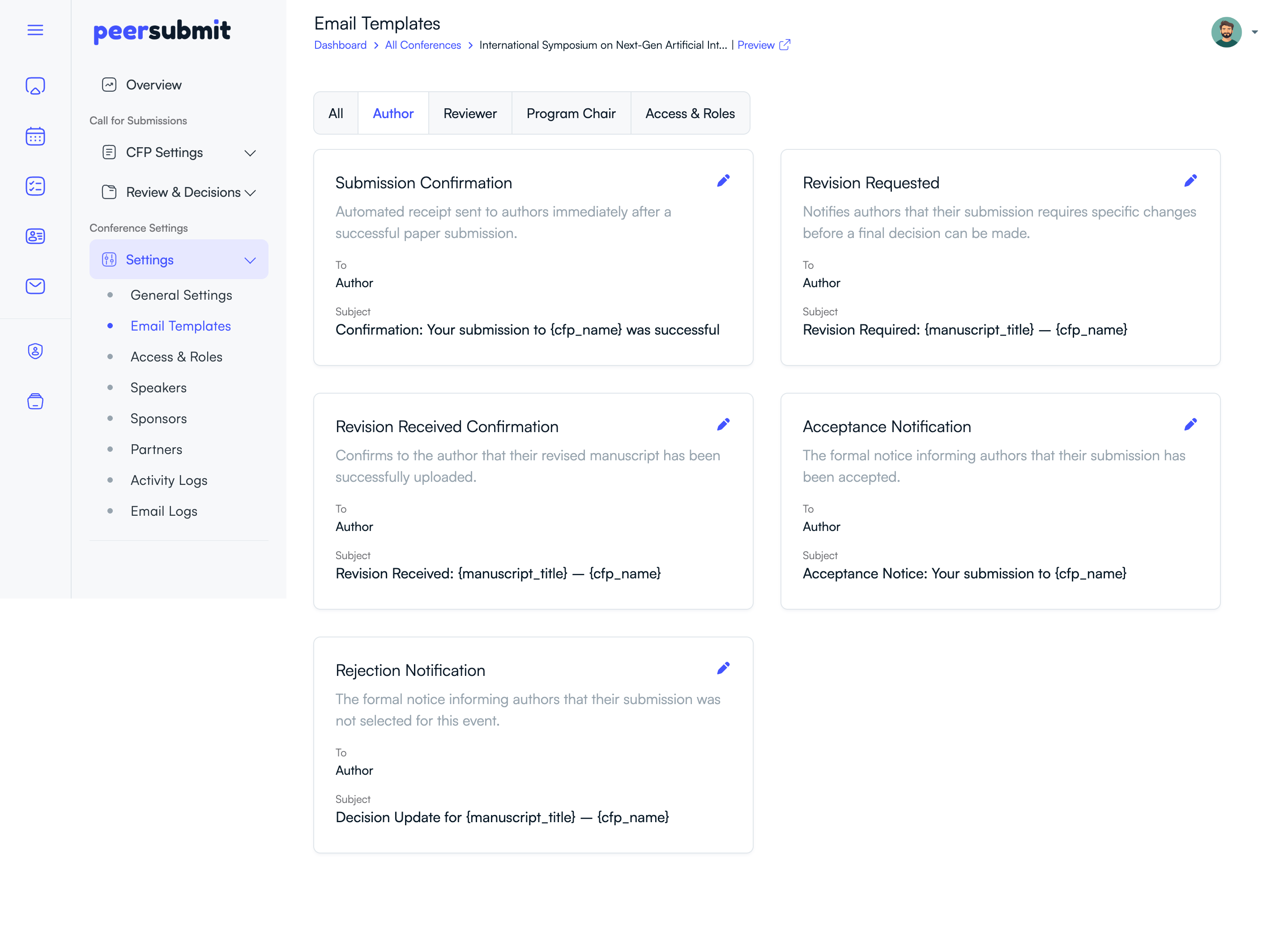
Step 6: Customize Email Templates
Organizers can customize these notification emails according to conference requirements.
- Navigate to Conference Settings → Email Templates.
- Select the template you want to edit.
- Update the email subject or message content.
- Save changes to apply them for future notifications.
Why Decision Notifications Are Important
- Inform authors about the status of their submission.
- Provide feedback and next steps for revisions.
- Maintain transparency in the peer review process.
- Ensure timely communication with conference participants.
By automating decision notifications, PeerSubmit helps organizers streamline communication and keep authors informed throughout the review process.
Related Articles
Start Running Your Conference—From Submission to Decision
Join hundreds of organizers who trust PeerSubmit to manage their academic events with AI-powered efficiency and seamless workflows.
No credit card required • Setup in minutes
Run Your Conference Without the Chaos
Manage submissions, peer review, registrations, and event workflows—all in one platform built for academic conferences.
Join hundreds of academic conferences already using PeerSubmitNo credit card required • Setup in minutes