How do reviewers view submissions assigned to them?

Paige Watson
Updated on 10 March 2026When you are invited as a reviewer in PeerSubmit, you will receive access to the organization and conference where you are assigned to review submissions. After logging in, you can select the organization and conference to access your reviewer dashboard and assigned papers.
Each reviewer may have access to one or multiple conferences depending on the invitations sent by organizers.
Step 1: Log in to PeerSubmit
- Go to the PeerSubmit login page.
- Enter your registered email and password.
- Click Login to access your account.

Step 2: Select the Organization
- After logging in, you may see a list of organizations.
- Select the organization that invited you to review submissions.
- You will be redirected to the organization dashboard.

Step 3: Select the Conference
- From the available conferences, select the conference you are reviewing for.
- The conference dashboard will open.
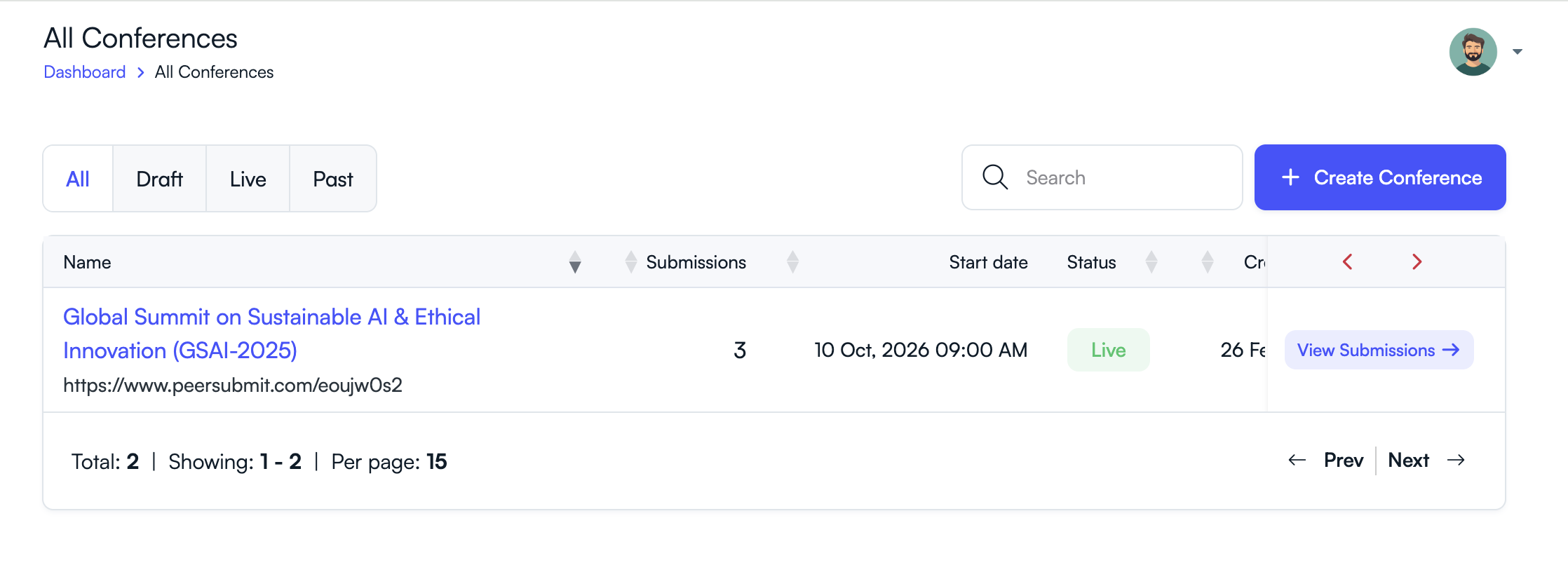
Step 4: Open Assigned Submissions
- Navigate to the Submissions section.
- You will see the list of papers assigned to you for review.
- Click a submission to view the manuscript details and start reviewing.

Tip
- If you are assigned to multiple conferences, repeat the same process to access each conference.
- Only conferences where you are invited as a reviewer will appear in your dashboard.
Once you access the conference, you can review manuscripts, submit scores and comments, and track your review progress.
Related Articles
Start Running Your Conference—From Submission to Decision
Join hundreds of organizers who trust PeerSubmit to manage their academic events with AI-powered efficiency and seamless workflows.
No credit card required • Setup in minutes
Run Your Conference Without the Chaos
Manage submissions, peer review, registrations, and event workflows—all in one platform built for academic conferences.
Join hundreds of academic conferences already using PeerSubmitNo credit card required • Setup in minutes