How can organizers schedule email campaigns?

Paige Watson
Updated on 10 March 2026PeerSubmit allows organizers to schedule email campaigns to be sent automatically at a later time. Scheduling campaigns helps organizers plan announcements, reminders, and marketing messages in advance without needing to manually send them at the exact moment.
This feature is especially useful for sending submission deadline reminders, conference announcements, and promotional emails at the optimal time.

Step 1: Integrate an Email Provider
Before sending emails, organizers must connect an email delivery service.
- Go to Apps & Integrations.
- Choose an available email provider such as AWS SES or Mandrill.
- Add the required API keys or integration details.

Step 2: Create an Email Template
Email templates help organizers reuse common messages such as submission reminders, acceptance notifications, or conference updates.
- Navigate to Email Campaigns → Templates.
- Click Create Template.
- Add the template name and email content.
- Use personalization tags like {name} or {first_name} if needed.
Step 3: Create Contact List and Import Contacts
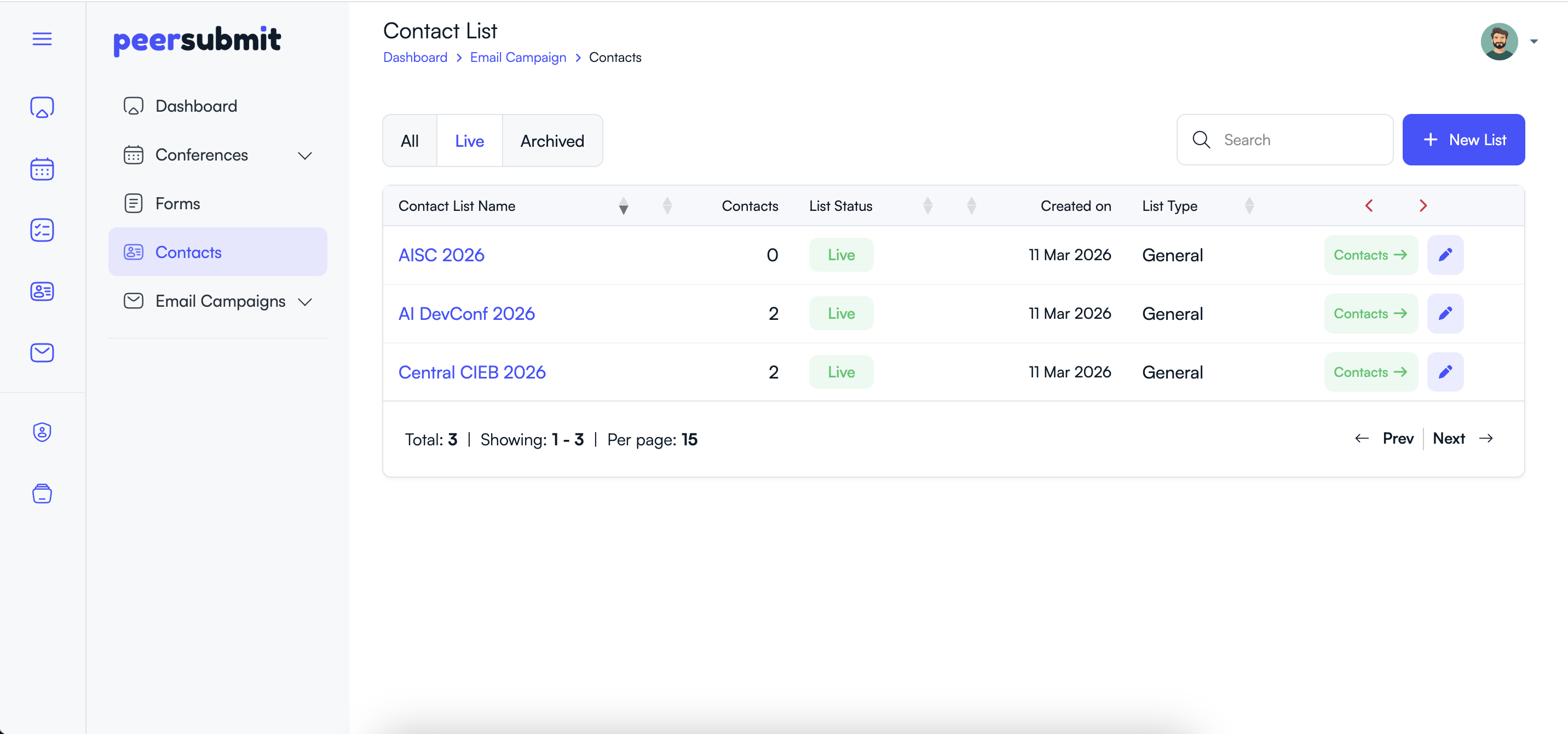
Before sending a campaign, you need a contact list containing the recipients who will receive the email.
- Go to the Contacts section from the left sidebar.
- Click the New List button to create a new contact list.
- Enter a Contact List Name to organize your recipients.
- Save the contact list.
- Open the newly created list and click Add Contacts or Import Contacts.
- Upload contacts manually or import them using a CSV file.
- Verify the imported contacts and save the list.
Step 4: Navigate to Email Campaigns
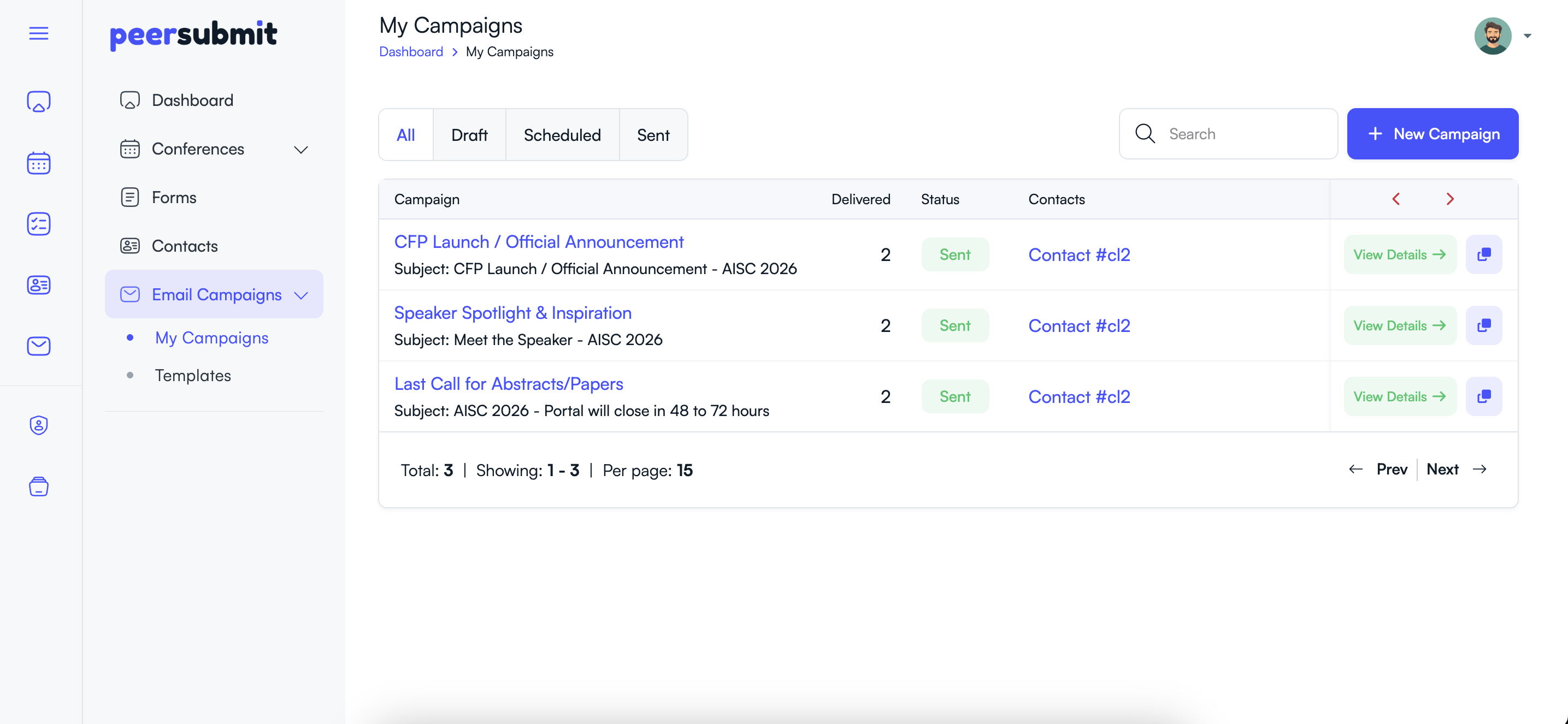
- Log in to your PeerSubmit organizer dashboard.
- From the left sidebar menu, click Email Campaigns.
- Select My Campaigns to view existing campaigns.
Step 5: Start a New Campaign
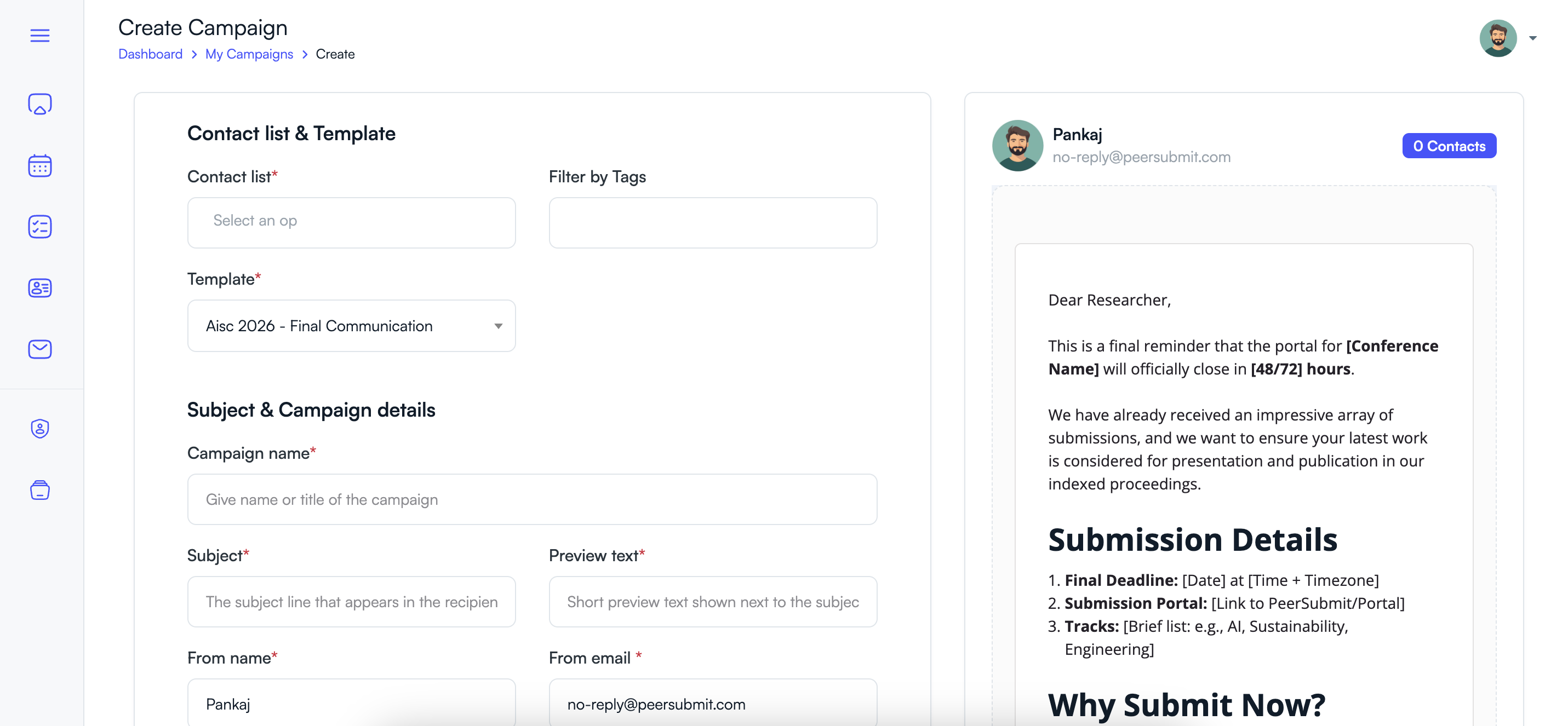
- Click the New Campaign button.
- The campaign creation page will open.
Step 6: Select Contact List and Email Template
Choose the audience and message template for your campaign.
- Select the Contact List that contains the recipients.
- Optionally filter contacts using Tags.
- Choose an Email Template that contains the message content.
Step 7: Configure Campaign Details
- Enter a Campaign Name for internal reference.
- Add the email Subject line.
- Enter the Preview Text that appears in the recipient’s inbox.
- Specify the From Name and From Email address.
Step 8: Review and Confirm
- Review the campaign preview.
- Verify the selected contact list and template.
- Click Schedule Campaign to confirm.
Benefits of Scheduling Email Campaigns
- Plan communication in advance.
- Send deadline reminders automatically.
- Ensure emails are delivered at optimal times.
- Save time by automating campaign delivery.
Scheduled campaigns help organizers maintain consistent communication with conference participants while reducing manual effort.
Related Articles
Start Running Your Conference—From Submission to Decision
Join hundreds of organizers who trust PeerSubmit to manage their academic events with AI-powered efficiency and seamless workflows.
No credit card required • Setup in minutes
Run Your Conference Without the Chaos
Manage submissions, peer review, registrations, and event workflows—all in one platform built for academic conferences.
Join hundreds of academic conferences already using PeerSubmitNo credit card required • Setup in minutes