How can organizers create custom fields?

Paige Watson
Updated on 10 March 2026PeerSubmit allows organizers to create custom fields in forms to collect specific information from participants. Custom fields help capture details that may not be available in the default field library.
For example, organizers may want to collect information such as research interests, dietary preferences, session selection, affiliation details, or feedback ratings. Custom fields make it easy to gather this information directly through the form.
Step 1: Open the Form Builder
To create a custom field, first open the form editor.
- Log in to your PeerSubmit organizer account.
- Navigate to the Forms section in the dashboard.
- Select the form where you want to add a custom field.
- Click Edit to open the form builder.
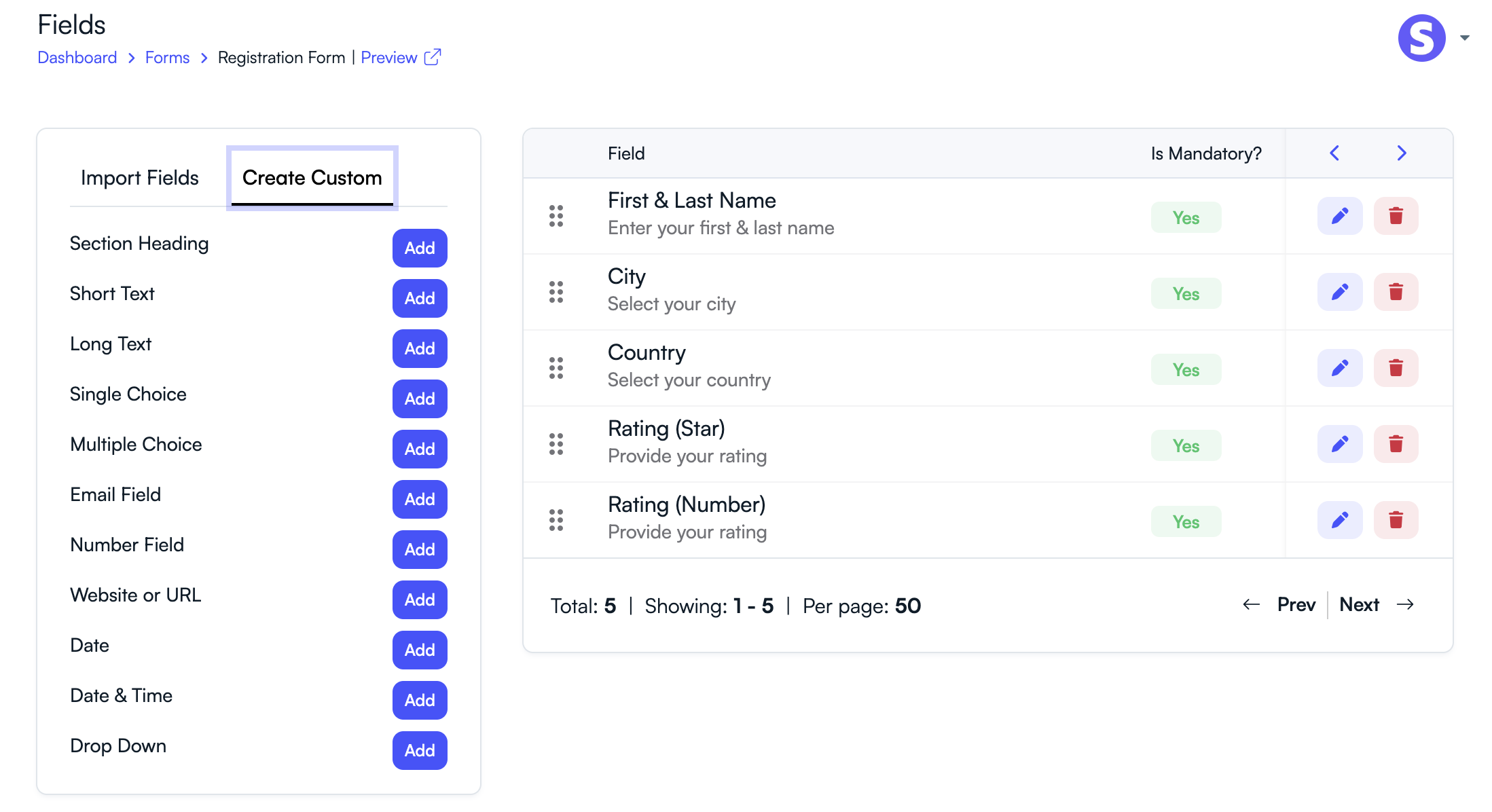
Step 2: Add a Custom Field
Inside the form builder, you can create a new custom field.
- Click the Add Field button.
- Choose the field type you want to create.
- Enter the field label (the question users will see).
- Add options if the field requires selectable values.
- Click Save to add the field to the form.
Common Custom Field Types
PeerSubmit allows organizers to create different types of custom fields depending on the type of information they want to collect.
- Text Field – Used for short responses such as department name, job title, or affiliation.
- Textarea – Used for longer responses such as comments, feedback, or explanations.
- Dropdown Field – Allows users to select one option from a predefined list.
- Checkbox Field – Allows users to select multiple options.
- Radio Button Field – Allows users to choose one option from several choices.
- Rating Field – Useful for collecting ratings such as satisfaction or evaluation scores.
- Date Field – Allows users to select a date using a calendar picker.
Step 3: Configure Field Settings
Each custom field can be configured to control how users interact with the form.
- Mark the field as Required if users must complete it.
- Add placeholder text or instructions.
- Define multiple options for dropdown, radio, or checkbox fields.
- Set default values if needed.
Step 4: Arrange Fields in the Form
After creating custom fields, you can organize them within the form.
- Drag and drop fields to change their order.
- Group related fields together for better form structure.
- Edit or remove fields if necessary.
Using custom fields helps organizers collect exactly the information they need while keeping forms flexible and easy for participants to complete.
Related Articles
Start Running Your Conference—From Submission to Decision
Join hundreds of organizers who trust PeerSubmit to manage their academic events with AI-powered efficiency and seamless workflows.
No credit card required • Setup in minutes
Run Your Conference Without the Chaos
Manage submissions, peer review, registrations, and event workflows—all in one platform built for academic conferences.
Join hundreds of academic conferences already using PeerSubmitNo credit card required • Setup in minutes