How can organizers delete form fields?

Paige Watson
Updated on 10 March 2026PeerSubmit allows organizers to remove form fields that are no longer needed. Deleting unnecessary fields helps keep forms clean, relevant, and easier for participants to complete.
You can delete any field directly from the form builder while editing the form.
Step 1: Open the Form Builder
To delete a field, first open the form editor.
- Log in to your PeerSubmit organizer account.
- Go to the Forms section from the dashboard.
- Select the form you want to modify.
- Click Edit to open the form builder.
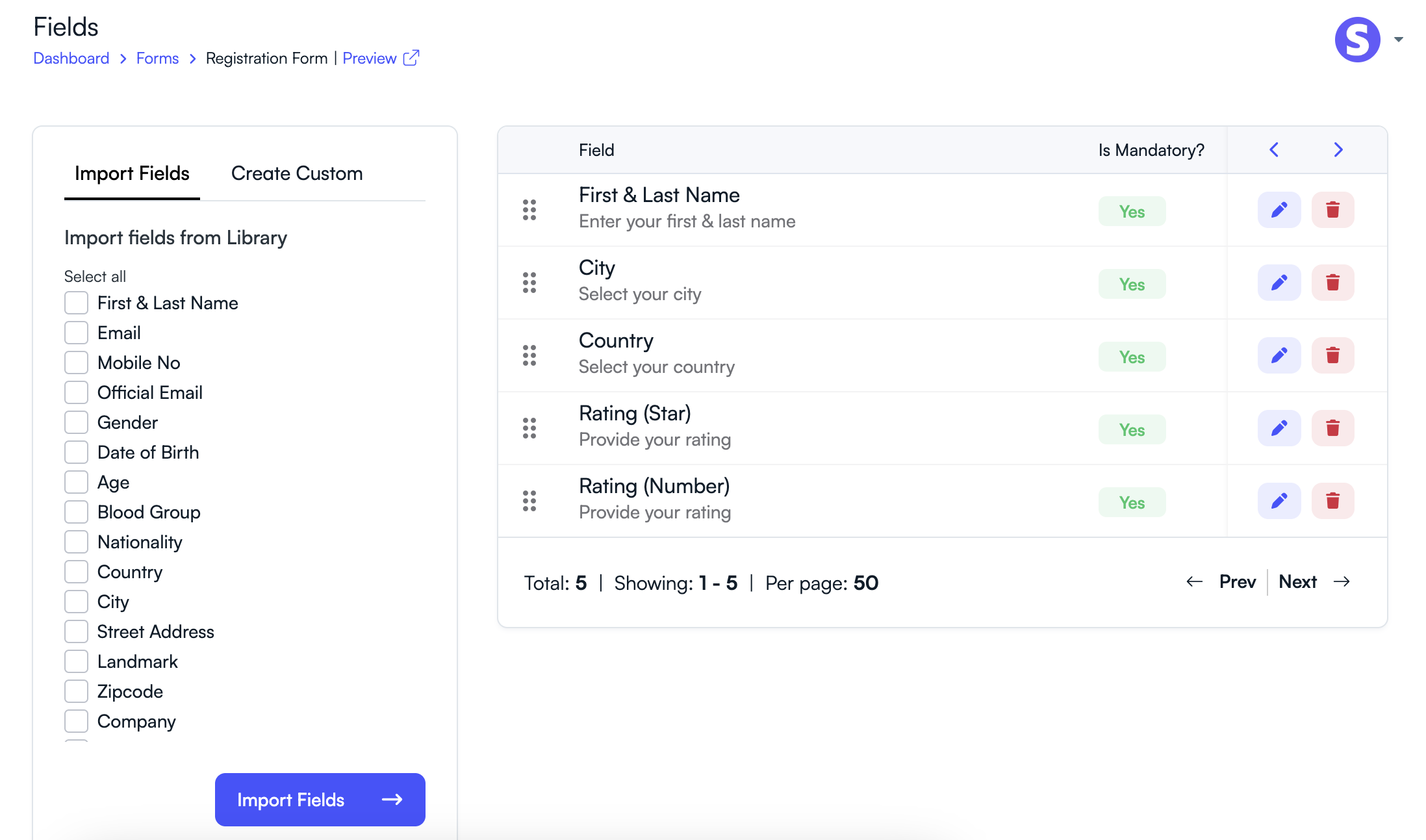
Step 2: Locate the Field to Delete
Inside the form builder, all fields added to the form will be displayed.
- Scroll through the list of fields.
- Find the field you want to remove.
Step 3: Delete the Field
Once you identify the field you want to remove:
- Click the Delete or Trash icon next to the field.
- Confirm the deletion when prompted.
- The field will be removed from the form.
Important Notes
- Deleting a field removes it from the form layout.
- If responses were already collected, you should review data before deleting fields.
- You can always add new fields later if needed.
Keeping only the necessary fields ensures that participants can complete forms quickly and improves the overall user experience.
Related Articles
Start Running Your Conference—From Submission to Decision
Join hundreds of organizers who trust PeerSubmit to manage their academic events with AI-powered efficiency and seamless workflows.
No credit card required • Setup in minutes
Run Your Conference Without the Chaos
Manage submissions, peer review, registrations, and event workflows—all in one platform built for academic conferences.
Join hundreds of academic conferences already using PeerSubmitNo credit card required • Setup in minutes