How to Invite Team Members to Your Conference

Paige Watson
Updated on 10 March 2026PeerSubmit allows conference organizers to collaborate with program chairs, reviewers, and organizing team members. Using the Team Access feature, you can invite people to your conference and control what parts of the platform they can access.
You can add team members in two ways: by importing an existing PeerSubmit user or by creating a new team member directly from the platform.
Open the Team Access Section
To invite collaborators to your conference, open the Team Access section in your conference settings.
- Open your conference dashboard.
- Go to Settings from the left menu.
- Click Access & Roles.
- Click Add Team to open the team member dialog.

Option 1: Import an Existing User
If the person you want to add already has a PeerSubmit account, you can quickly import them to your conference team.
- Open the Import tab.
- Select the user from the list of available accounts.
- Click Import to add them to your conference team.
This option is useful when the person already uses PeerSubmit for other conferences or events.

Option 2: Add a New Team Member
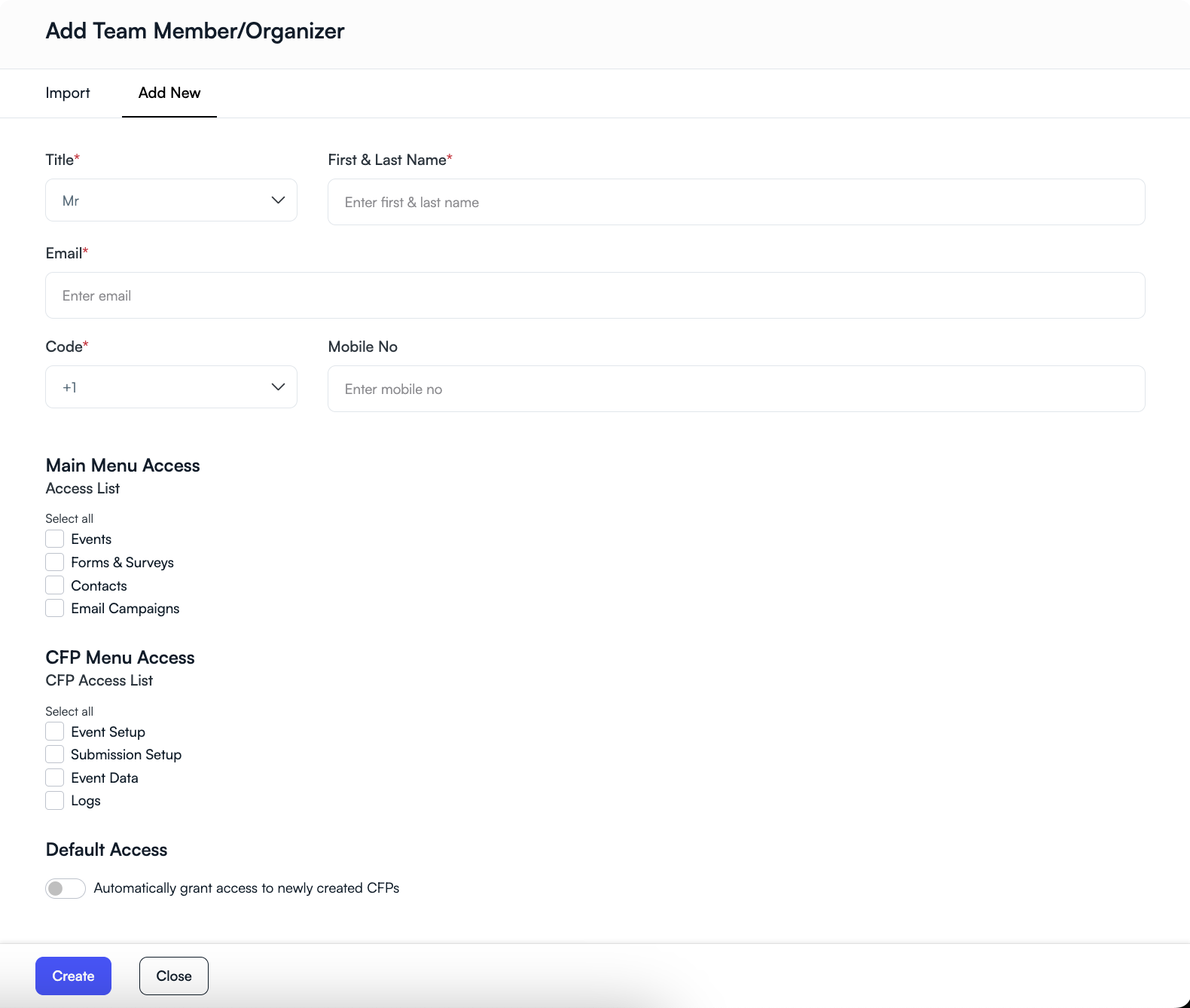
If the person does not yet have a PeerSubmit account, you can create a new team member directly.
- Open the Add New tab.
- Enter the person's name and email address.
- Optionally add their mobile number.
- Click Create to add them.
PeerSubmit will create an account for the user and send them an invitation email.
Assign Access Permissions
When adding a team member, you can control what parts of the platform they can access.
- Main Menu Access – Access to Events, Forms, Contacts, and Email Campaigns.
- CFP Menu Access – Access to submission setup, event data, and logs.
- Default Access – Automatically grant access to newly created CFPs.
These permissions ensure that each team member only has access to the features relevant to their responsibilities.
Managing Your Conference Team
Once team members are added, you can manage their access anytime from the Team Access page.
- View all members assigned to the conference.
- Update permissions if roles change.
- Remove users who no longer need access.
Properly managing team access helps keep your conference workflow secure and organized.
Related Articles
Start Running Your Conference—From Submission to Decision
Join hundreds of organizers who trust PeerSubmit to manage their academic events with AI-powered efficiency and seamless workflows.
No credit card required • Setup in minutes
Run Your Conference Without the Chaos
Manage submissions, peer review, registrations, and event workflows—all in one platform built for academic conferences.
Join hundreds of academic conferences already using PeerSubmitNo credit card required • Setup in minutes