How to Manage User Roles and Permissions

Paige Watson
Updated on 10 March 2026PeerSubmit allows conference organizers to assign different roles to manage the submission and review process efficiently. By defining roles such as Program Chair and Reviewer, you can distribute responsibilities across your conference team while maintaining control over the review workflow.
User roles for the Call for Papers (CFP) are managed inside the conference workspace under the CFP Settings section, while broader platform permissions can be managed through Access & Roles.
Program Chairs
Program Chairs oversee the peer review process and make final decisions on submissions. They coordinate with reviewers, manage evaluation criteria, and ensure the review process follows the conference guidelines.
- Review submitted papers and reviewer feedback.
- Assign reviewers to submissions.
- Monitor review progress.
- Make final acceptance or rejection decisions.
To add a Program Chair:
- Open your conference dashboard.
- Go to CFP Settings in the left sidebar.
- Click Program Chairs.
- Click Add Chair and enter the required details.

Reviewers
Reviewers are experts who evaluate submitted manuscripts based on the conference criteria. They provide feedback and recommendations that help program chairs make final decisions.
- Review assigned papers.
- Provide scores and detailed comments.
- Evaluate submissions according to review guidelines.
- Submit recommendations for acceptance or revision.
To add a reviewer:
- Navigate to CFP Settings.
- Click Reviewers.
- Click Add Reviewer.
- Enter the reviewer’s profile information and expertise areas.

Reviewer Expertise and Topics
PeerSubmit allows reviewers to be associated with specific research topics or expertise areas. This helps organizers assign submissions to the most relevant reviewers based on their specialization.
- Artificial Intelligence
- Machine Learning
- Large Language Models
- Computing and Data Science
Using topic-based reviewer assignments helps improve review quality and ensures that submissions are evaluated by subject matter experts.
Giving Permissions to Team Members
In addition to assigning reviewers and program chairs, PeerSubmit allows organizers to control platform access for team members. This is useful when multiple organizers or administrators collaborate to manage conferences.
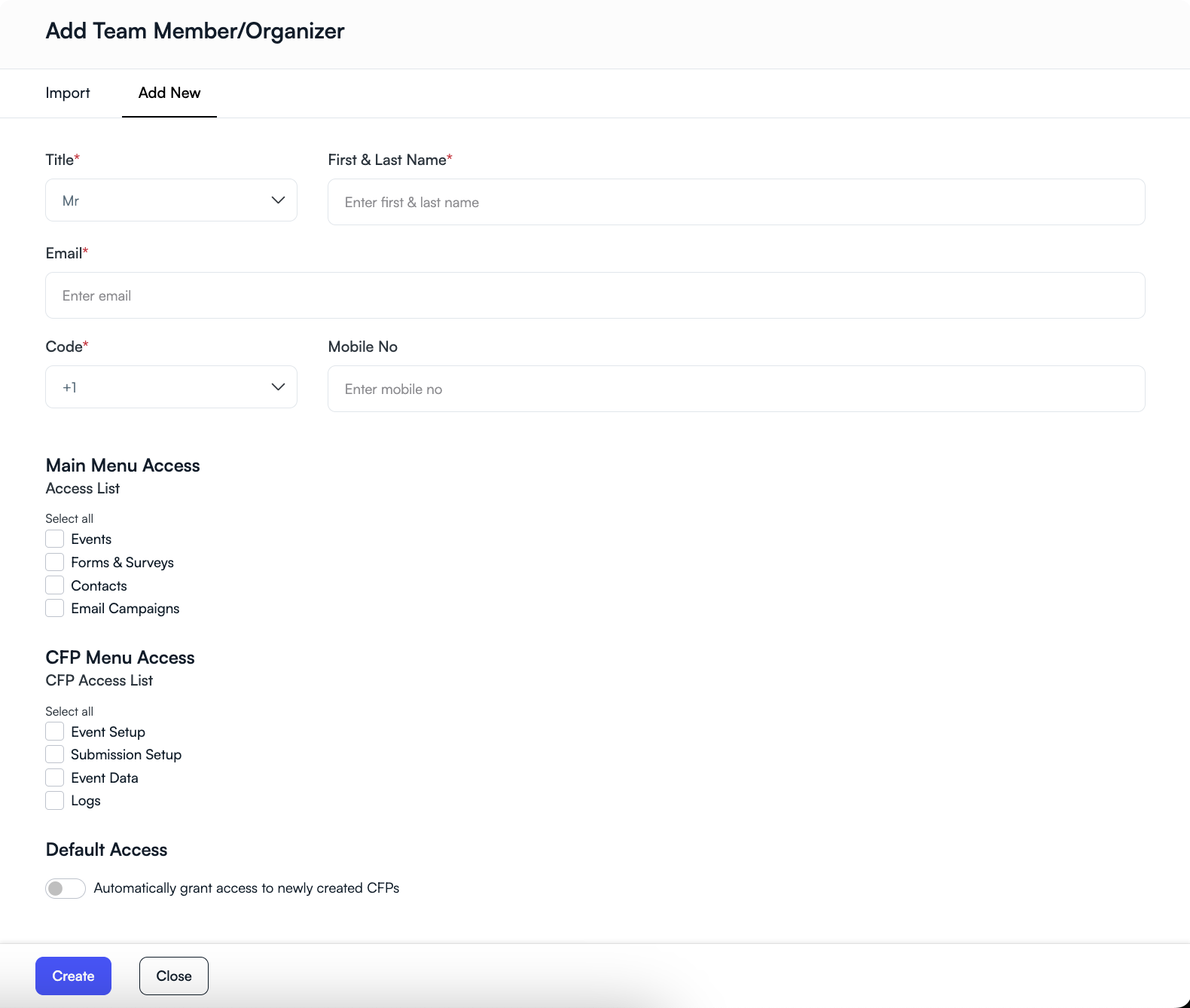
To assign permissions to team members:
- Open the conference dashboard.
- Go to Settings.
- Click Access & Roles.
- Select an existing member or add a new organizer.
You can then configure access using two permission groups:
Main Menu Access
These permissions control which major platform tools the team member can access.
- Events – Manage conferences and event settings.
- Forms & Surveys – Create registration or feedback forms.
- Contacts – Manage participants and mailing lists.
- Email Campaigns – Send announcements and notifications.
CFP Menu Access
These permissions control access to submission and review configuration features.
- Event Setup – Configure conference details.
- Submission Setup – Manage submission rules and tracks.
- Event Data – Access submissions and participant data.
- Logs – View activity logs.
You can also enable automatic access for newly created CFPs so that team members automatically gain permissions when new submission tracks or events are created.
Managing the Review Committee
You can update or manage committee members at any time during the conference lifecycle.
- Add new reviewers or program chairs.
- Update reviewer expertise or affiliation.
- Remove members who are no longer participating.
A well-structured review committee helps maintain a fair, transparent, and efficient peer review process.
Related Articles
Start Running Your Conference—From Submission to Decision
Join hundreds of organizers who trust PeerSubmit to manage their academic events with AI-powered efficiency and seamless workflows.
No credit card required • Setup in minutes
Run Your Conference Without the Chaos
Manage submissions, peer review, registrations, and event workflows—all in one platform built for academic conferences.
Join hundreds of academic conferences already using PeerSubmitNo credit card required • Setup in minutes