How to Create an Organization Profile

Paige Watson
Updated on 10 March 2026Your organization profile in PeerSubmit represents your institution, university, company, or research group that organizes conferences or academic events. Setting up this profile ensures that your conferences display the correct institutional information and branding.
You can update your organization details anytime from the profile settings section of the platform.
Open the Profile Settings
To create or update your organization profile, start by opening your account profile settings.
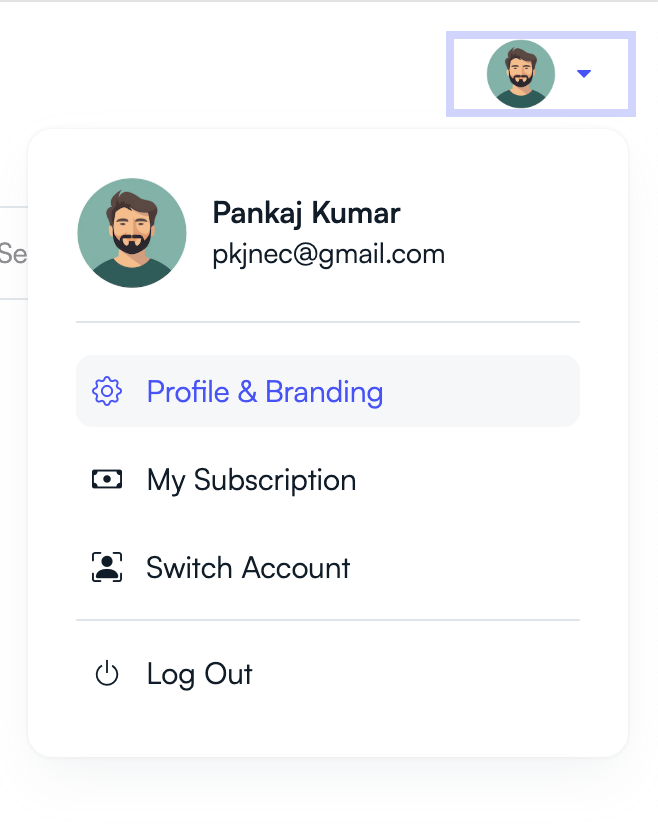
- Click your profile icon in the top-right corner of the dashboard.
- Select Profile & Branding.
- You will be redirected to the Profile Details page.
Go to the Organization Tab
Inside the Profile Details page, you will see multiple tabs where you can manage account and organization information.
- Click the Organization tab.
- This section allows you to manage institution details.

Add Organization Details
Enter the required details about your institution or organization.
- Organization – Name of your university, institute, or organization.
- Designation – Your role or title within the organization.
- Short Description – A brief description of your organization or event activity.
Providing accurate information helps participants and collaborators identify your institution correctly.
Add Location Information
You can also include the official address of your organization.
- Select your country.
- Choose the state or region.
- Enter the city and postal code.
- Add the complete address.
This information may be displayed on conference pages and used for institutional identification.
Save Your Organization Profile
After completing all required fields, save your organization profile.
- Review the entered details.
- Click Save Changes.
Your organization profile will now be linked to your PeerSubmit account and used across conferences you manage.
Additional Profile Settings
The Profile Details page also allows you to manage other account settings.
- Profile – Update personal account details.
- Branding – Customize logos and visual identity.
- Currency & Tax – Configure billing and payment settings.
- Social Media – Add social links related to your organization.
Keeping your profile information up to date helps maintain a professional and consistent presence across all your conferences.
Related Articles
Start Running Your Conference—From Submission to Decision
Join hundreds of organizers who trust PeerSubmit to manage their academic events with AI-powered efficiency and seamless workflows.
No credit card required • Setup in minutes
Run Your Conference Without the Chaos
Manage submissions, peer review, registrations, and event workflows—all in one platform built for academic conferences.
Join hundreds of academic conferences already using PeerSubmitNo credit card required • Setup in minutes