How to Test Your Conference Submission Workflow

Paige Watson
Updated on 10 March 2026Before opening your Call for Papers to the public, it is recommended to test the entire submission and review workflow. Testing ensures that authors can submit papers successfully and reviewers can evaluate submissions without issues.
PeerSubmit allows organizers to simulate the complete submission process—from author submission to reviewer assignment and final decisions.
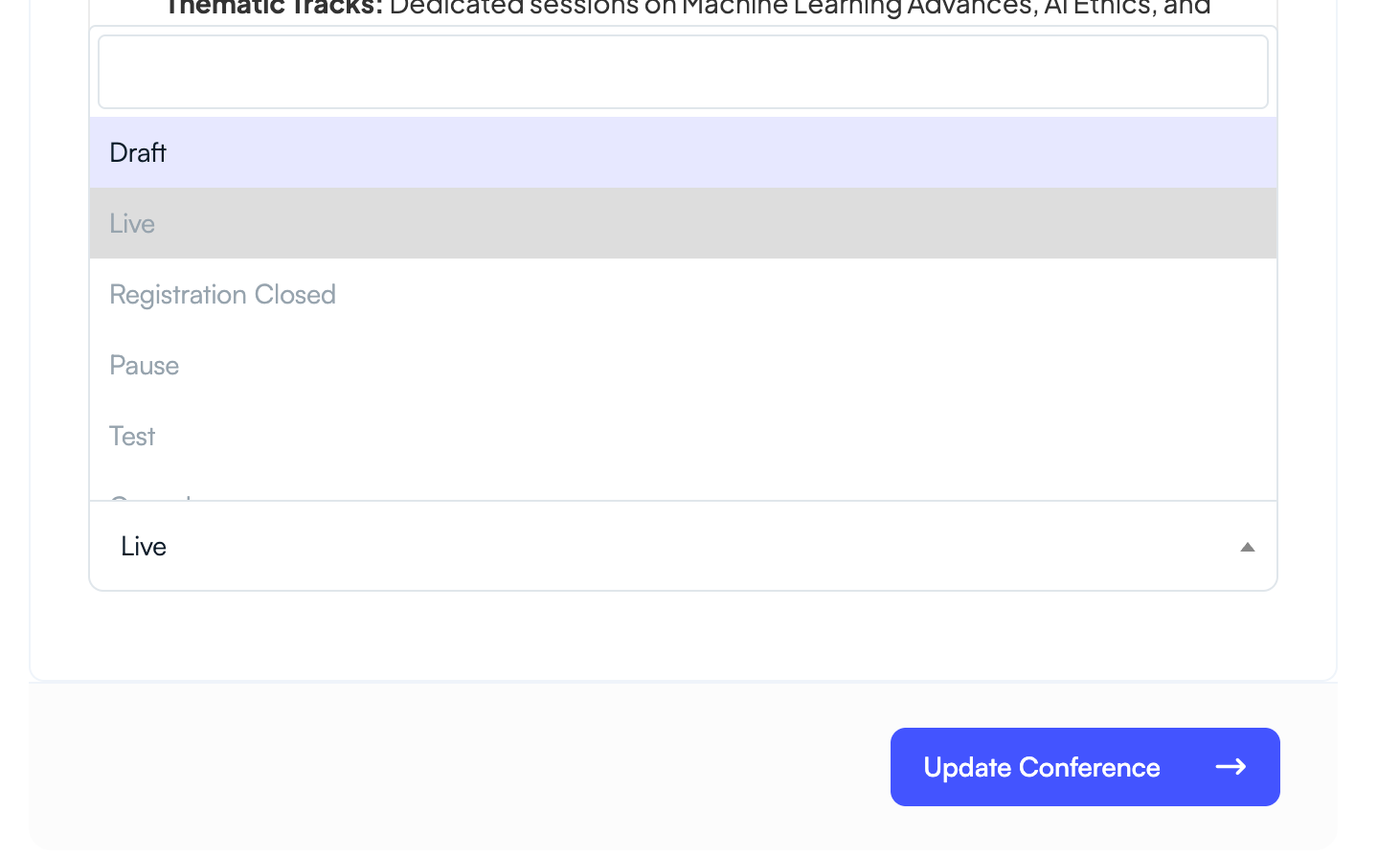
Step 1: Set Your Conference Status to Test or Live
First, ensure that your conference is active so the submission page is accessible.
- Go to Conference Settings → General Settings.
- Locate the Conference Status option.
- Set the status to Test (recommended for testing) or Live.
- Click Update Conference.
This makes the conference submission page accessible for testing.

Step 2: Open the Conference Submission Page
Next, open your public conference page where authors will submit papers.
- Open your conference page URL.
- Click the Submit Abstract or Submit Paper button.
This opens the submission workflow used by authors.

Step 3: Select the Submission Track
Authors must choose a track or category for their submission.
- Review the available conference tracks.
- Click Select for the appropriate track.
Tracks help organizers categorize submissions and assign suitable reviewers.

Step 4: Enter Author Details
Next, fill in the author information required for the submission.
- Enter the author's name and email.
- Provide affiliation and designation.
- Select the author's country and department.
- Add additional authors if required using Add Co-author.
Click Save & Proceed to continue to manuscript submission.

Step 5: Enter Manuscript Details
Now provide the details of the research paper or abstract.
- Upload the manuscript document.
- Enter the manuscript title.
- Provide the abstract.
- Add relevant keywords.
- Add additional manuscripts if multiple submissions are allowed.
Click Proceed to complete the submission.

Step 6: Verify the Submission in the Dashboard
After submitting the test paper, confirm that it appears in the organizer dashboard.
- Go to Review & Decisions → Submissions.
- Verify that the submitted paper appears in the list.
- Open the submission to review the entered details.

Step 7: Assign Reviewers
To test the peer review workflow, assign reviewers to the test submission.
- Open the submission details page.
- Click Manage Reviewer.
- Assign reviewers manually or use AI recommendations.
Step 8: Submit a Test Review
Reviewers can now evaluate the submission using the review form.
- Open the assigned submission.
- Fill out the review evaluation form.
- Submit comments and scores.
Step 9: Test the Decision Process
Program chairs can test the final decision workflow.
- Open the submission details page.
- Review reviewer feedback.
- Test decision options such as Accept, Reject, or Request Revision.
Best Practices for Testing
Testing your submission workflow ensures that your conference submission system works correctly before opening submissions to authors.
- Perform at least one full submission test.
- Verify reviewer assignments and evaluation forms.
- Test the decision workflow.
- Confirm that submission statuses update correctly.
Once testing is complete, your conference submission system will be ready for authors and reviewers.
Related Articles
Start Running Your Conference—From Submission to Decision
Join hundreds of organizers who trust PeerSubmit to manage their academic events with AI-powered efficiency and seamless workflows.
No credit card required • Setup in minutes
Run Your Conference Without the Chaos
Manage submissions, peer review, registrations, and event workflows—all in one platform built for academic conferences.
Join hundreds of academic conferences already using PeerSubmitNo credit card required • Setup in minutes